Branding
Customize your LearnBuilder environment with your logo, favicon, brand colors, fonts, and certificate design.
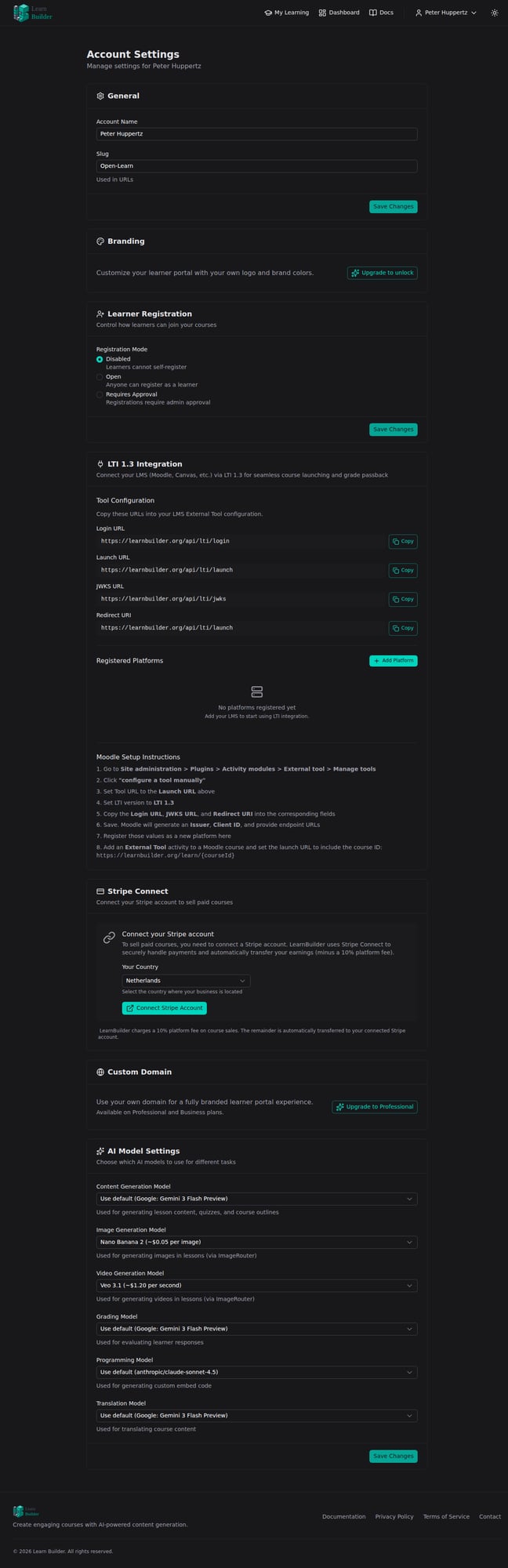
Custom branding lets you replace LearnBuilder's default visual identity with your own — logo, favicon, color scheme, typography, and certificate design — across the learner portal, course pages, and certificates.
Note: Custom branding is included with all paid plans (Starter and above).
Uploading your logo
Your logo appears in the top navigation bar and on the learner portal login and registration pages.
- Navigate to User Menu → Account → Branding tab
- Click Upload Logo
- Select an image file from your computer
Tip: Square or landscape formats work best. PNG with a transparent background is recommended for a clean appearance on both light and dark backgrounds. Recommended minimum size: 200×200px.
Uploading a favicon
The favicon appears in browser tabs and bookmarks.
- In the User Menu → Account → Branding tab, click Upload Favicon
- Select a square image — PNG, ICO, or SVG. 32×32px or 96×96px works best.
- Save changes
Setting brand colors
Your primary and secondary colors are used throughout the learner interface — buttons, links, progress bars, and certificate accents.
- In the User Menu → Account → Branding tab, find the Colors & Fonts section
- Click the color swatch next to Primary Color and enter a hex code or pick from the color picker
- Repeat for Secondary Color
- Save changes
The preview updates as you pick colors. Changes apply immediately to your live portal once saved.
Choosing fonts
You can select separate fonts for headings and body text in the learner portal.
- In the Colors & Fonts section, find Header Font and Body Font
- Choose a font from the dropdown for each — a selection of web-safe and Google Fonts is available
- Save changes
Where branding appears
| Element | Branding applied |
|---|---|
| Learner portal header | Logo |
| Login / registration page | Logo |
| Course player | Logo + primary color |
| Certificates | Logo + primary color + fonts |
| Email invitations | Logo |
| Browser tab | Favicon |
Certificate design
The Branding tab includes a full Certificate Layout section where you can customize how completion certificates look.
Certificate settings
| Setting | Description |
|---|---|
| Orientation | Landscape or Portrait |
| Background Image | Upload a custom JPG/PNG background — decorative borders are hidden when a background is set |
| Title Text | Heading text (default: "CERTIFICATE OF COMPLETION") |
| Subtitle Text | Text above the learner's name (default: "This certifies that") |
| Completion Text | Text below the learner's name (default: "has successfully completed") |
| Issuer Name | Organisation name shown at the bottom |
| Show completion date | Toggle on/off |
| Show grade | Toggle on/off |
| Show verification info | Toggle on/off |
A live preview updates as you make changes.
Tip: Upload a custom background image for a fully branded certificate design. Use a JPG or PNG in the correct orientation (landscape or portrait).
White-label branding
On the Business plan, white-label mode removes all LearnBuilder branding entirely, including footer references and default email footers. This is configured in User Menu → Account → Branding tab → White Label.