AI Features Overview
The three AI agents in LearnBuilder and what each one does.
LearnBuilder has three AI agents, each with a distinct role. They work together to help you create better courses and give learners a richer experience.
The three agents
Creator Agent
The Creator Agent helps you build courses. It works at authoring time — generating outlines, lessons, and content blocks from your learning objectives.
What it does:
- Generates course outlines and lesson plans
- Writes lesson content (text, scripts, questions) from a topic
- Creates images in your chosen style, with optional character consistency
- Generates video content
- Drafts quiz questions, dialogues, and other block types
Learn more about AI generation →
Tutor Agent
The Tutor Agent is a per-course AI assistant for learners. It appears as a chat widget inside the course and can answer questions about the course material.
What it does:
- Answers learner questions about the course content
- Uses your Knowledge Files as reference material
- Stays scoped to the course — won't wander off-topic
- Available inside each lesson via the chat widget
Learn more about the AI Tutor →
Assessment Agent
The Assessment Agent grades open-ended responses. It evaluates short answers, essays, and AI Dialogue conversations against your criteria.
What it does:
- Grades short answer questions against a model answer
- Grades essays against a rubric or criteria
- Evaluates AI Dialogue conversations for success criteria
- Provides written feedback to learners
Learn more about AI Assessment →
AI credits
All three agents consume AI credits. Credits are included monthly with paid plans; Free plan users pay per use.
| Plan | Monthly AI credits |
|---|---|
| Free | Pay-as-you-go |
| Starter | €5 |
| Professional | €15 |
| Business | €50 |
Unused credits do not roll over. Additional credits can be purchased at any time.
Note: Credit costs depend on the operation — generating video costs more than generating a text block. You can track your credit usage under User Menu → Billing.
Choosing AI models
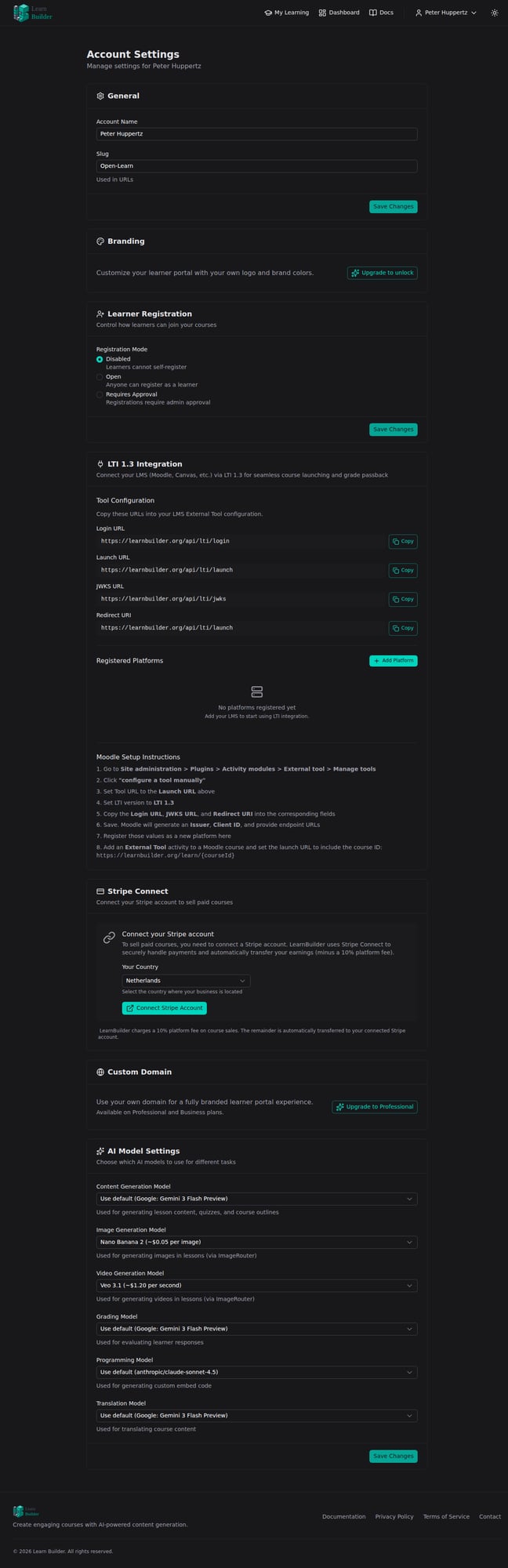
LearnBuilder lets you select different AI models for each type of task. This is configured in User Menu → Account → AI tab and applies to all courses in your account.
| Task | What it's used for |
|---|---|
| Content Generation | Generating lesson content, quizzes, course outlines |
| Image Generation | Creating images for lessons and cover images |
| Video Generation | Generating video content |
| Grading | Evaluating learner responses (essays, short answers, dialogues) |
| Programming | Generating code for Custom Embed blocks |
| Translation | Translating course content into other languages |
Each category offers a selection of models from different providers. More capable models generally cost more credits but produce higher-quality output.
Tip: You can mix and match — for example, use a powerful model for content generation where quality matters most, and a faster, cheaper model for translation. This lets you balance quality and budget based on your needs.
Course translation
LearnBuilder can translate an entire course into another language with one click. This creates a new copy of the course — the original remains unchanged.
How to translate a course
- Open the course you want to translate
- Open the ⋮ menu in Course Details and select Translate
- Scroll to the Translate Course section
- Select the target language from the dropdown
- Click Translate Course
A progress bar shows the translation status as each lesson and block is processed. Once complete, the new translated course appears on your dashboard as a separate course.
What gets translated
- Course title and description
- All lesson titles and descriptions
- All block content (text, quiz questions and answers, flashcard content, dialogue scenarios, etc.)
- AI Tutor and Assessment settings are carried over
Supported languages
Translation supports all languages available in LearnBuilder's language settings, including English, Spanish, French, German, Portuguese, Arabic, Chinese, Japanese, Korean, Italian, Russian, Ukrainian, Dutch, Turkish, and more.
Tips
- Review after translation — AI translation is high quality but may need minor adjustments for domain-specific terminology
- Choose the right model — you can select a specific translation model in User Menu → Account → AI tab to balance quality and cost
- The translated course is fully independent — you can edit it without affecting the original